
How to Install DeepSeek with Ollama on Linux Quick Guide
Integrating advanced language models such as DeepSeek into your infrastructure can revolutionize business processes. In this hands-on guide, we will explain how to install Deepseek-r1 using Ollama locally on Linux systems, in professional environments.
DeepSeek r1 is impressing the industry with its low cost of training, and superior test results to OpenAI ChatGPT and Google Gemini offering a low-cost, open source outsider alternative.
Researchers said it was made possible by a training process called "reinforcement learning" that allows for reduced training time and cost.
The Large Language Model (LLM) also integrates a "chain of thought" process that allows the user's requests to be retraced by simulating a chain of reasoning "step by step."
Why Choose DeepSeek with Ollama?
- Computational efficiency: Optimized for enterprise hardware
- Simplified management: Unified interface via Ollama
- Specialized models: DeepSeek r1 delivers superior performance in data analysis
Want to integrate DeepSeek into your company's infrastructure, on-premises or Cloud? Have a chat with one of our Linux systems analyst, he'll help you through all the steps, from installation to maintenance.
System Requirements
- Recommended Linux distribution (Ubuntu 22.04 or higher, Debian 11 or higher)
- 8 GB RAM minimum (16 GB recommended for intensive loads)
- 20 GB free disk space
- Access
rootorsudo - Stable Internet connection
Step 1: Install Ollama
Install Ollama, the open-source AI model management layer:
curl -fsSL https://ollama.ai/install.sh | shWe enable and start the ollama
sudo systemctl enable ollama
sudo systemctl start ollama
We check that the service is active
sudo systemctl status ollama* ollama.service - Ollama Service
Loaded: loaded (/etc/systemd/system/ollama.service; enabled; preset: enabled)
Active: active (running) since Thu 2025-01-30 16:56:57 UTC; 7s ago
Main PID: 3348 (ollama)
Tasks: 13 (limit: 308814)
Memory: 21.5M
CPU: 97ms
CGroup: /system.slice/ollama.service
`-3348 /usr/local/bin/ollama servesVerify installation:
ollama --versionStep 2: Installing DeepSeek-r1
After configuring Ollama, we need to download a Large Language Model, we proceed with the LLM Deepseek r1 model locally.
We choose the model we want to use these links to the Ollama repository, e.g.
- Ollama
deepseek-r1: The first generation of DeepSeek reasoning models, with performance comparable to OpenAI-o1, including six dense models distilled from DeepSeek-R1 based on Llama and Qwen. - Ollama
deepseek-v3: A powerful Mixture-of-Experts (MoE) language model with 671 billion total parameters, including 37 billion activated per token. - Ollama
deepseek-coder-v2: A Mixture-of-Experts-based open-source code language model that achieves performance comparable to GPT4-Turbo in code-specific tasks.
We copy the template download command, which returns the selected tag in the name:tag format, like this example for DeepSeek-R1-Distill-Qwen-7B:
start run deepseek-r1:7bstart run deepseek-r1Step 3: Configure Open WebUI (Web Interface)
Implement a centralized control panel as a web interface for DeepSeek:
Install python3 and necessary dependencies:
sudo apt install python3-venv python3-pipActivate the
venv:source ~/open-webui/bin/activateStart the
open-webuiserver withopen-webui servesINFO: Uvicorn running on http://0.0.0.0:8080 (Press CTRL+C to quit)- Access via browser to
http://localhost:8080
Create a Virtual Environment in Python:
python3 -m venv ~/open-webuiInstall open-webui via pip excluding the cache which can cause problems:
pip install open-webui --no-cache-dir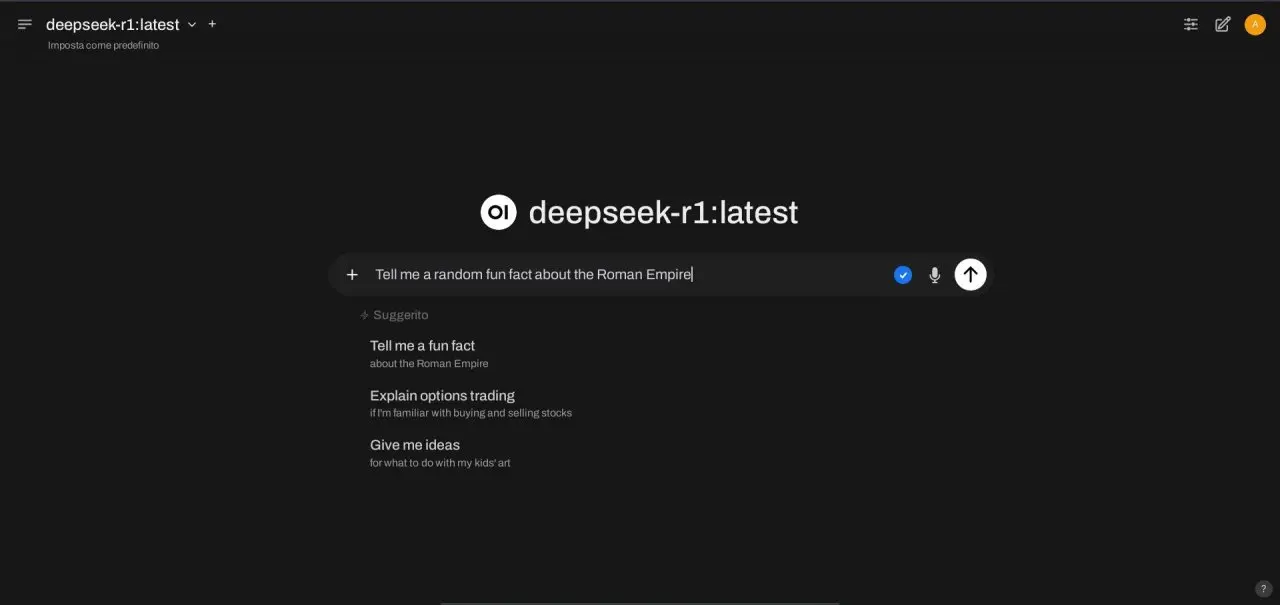
Test Installation
Test DeepSeek locally from full console with:
add run deepseek-r1 "show me the version of the deepseek template I'm using"
The DeepSeek-R1 is the recent DeepSeek deep learning developer model. To obtain information
details about the -active version you are using, follow these steps:
1. **Open your client**: Open the DeepSeek client you are using.
2. **Find the version options**:
   - If you are using the mobile app, scroll up/cross the screen to find the version options.
   - If you are using the website, go into the "Configurations" menu and look for version options.
3. **Check your version**:
   - In addition, you can get general information about your version香蕉that Open the support menu (often
indicated by double-clicking on the client icon) and search for "Client Information" or similar. Usually,
general information is displayed including the active version.
4. **Online use**:
   - If you are in doubt, you can also use the client's diayuda command to get more details about
which versions are available.
For example, if you are using the mobile app, you can type `comandosuap restoreaconf` or similar in the
command to get information about your version.
If you need a list of available active versions, you can follow the steps above and Find options
specific to your version.
FAQ (Frequently Asked Questions)
1. What are the hardware requirements for DeepSeek?
We recommend dedicated servers with:
- 8-core x86_64 CPU
- 32 GB DDR4 RAM
- NVMe storage
2. How to update DeepSeek templates?
add pull deepseek-r13. Can the API be integrated into custom applications?
Yes, it uses REST endpoints:
curl http://localhost:11434/api/generate -d '{
  "model": "deepseek-r1",
  "prompt": "analyze dataset XYZ"
}'
4. How to download DeepSeek
To test the AI you can download the official DeepSeek apps available for Android smartphones on Google Play and iPhone App Store using the online version
For local deployment there are different approaches, the easiest solution is to use Ollama to run the model as described in this guide
Conclusion and Next Steps
You now have an instance of DeepSeek R1 integrated with Ollama. For complex implementations and advanced optimizations, contact our team