
Configure your register DNS with CloudFlare: Complete Guide
Want to improve the speed and security of your website? Configuring the DNS of your register's domain with CloudFlare is a great way to do this. In this guide, I'll explain how to do it step by step, in a simple and accessible way.
Looking for a partner to better configure Cloudflare and respond to attacks in a timely manner? Contact our Cloudflare consulting now, 30' Free!
Why Use CloudFlare with your DNS register?
CloudFlare offers numerous benefits:
- Speed: Its global network enables faster site loading.
- Security: It protects the site from cyberattacks such as DDoS.
- Intuitive DNS Management: It offers simple tools to configure and manage DNS.
Configuring DNS to take advantage of CloudFlare's features can make a big difference.
How to Configure DNS with CloudFlare.
Let's find out how to use CloudFlare NameServer (NS) with your register
Step 1: Create an Account on CloudFlare
- Go to CloudFlare and register for free.
Add your domain (the site name without
www) to the dashboard.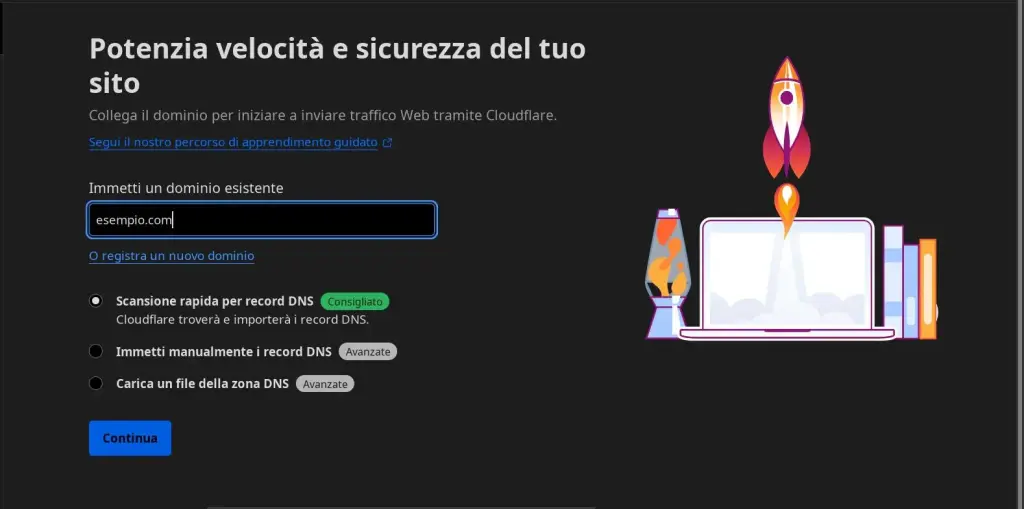
- CloudFlare will automatically detect your existing DNS records.
Step 2: Verify DNS Records on CloudFlare.
- Once your domain's DNS records have been scanned, the suggested configuration will be displayed
Check that all DNS records (A, AAAA, CNAME, MX, etc.) are configured correctly.
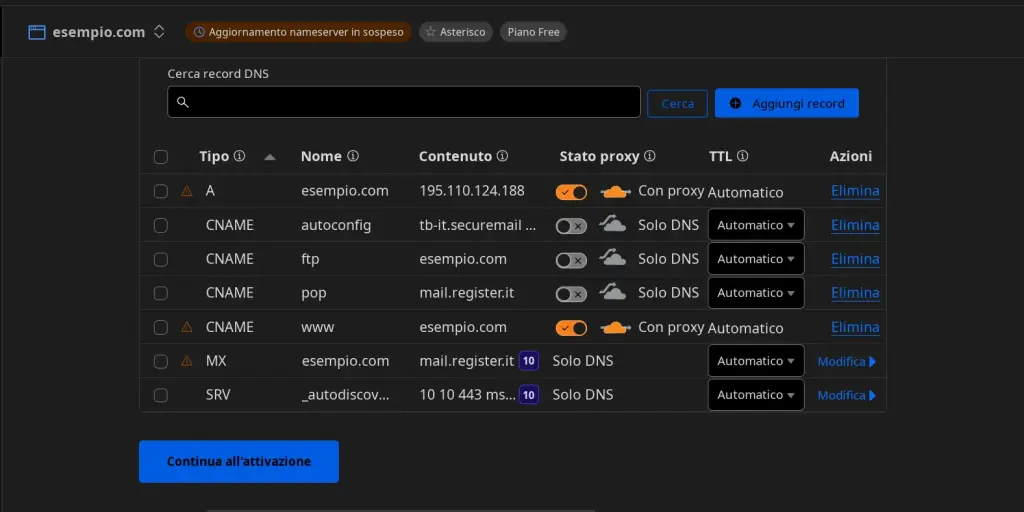
- Check the DNS configuration of your register, and report it exactly to CloudFlare
- Add or edit records, if necessary, to make sure they point to the correct server.
Continuing the activation will give us the assigned nameservers, which we will need to configure on our register.
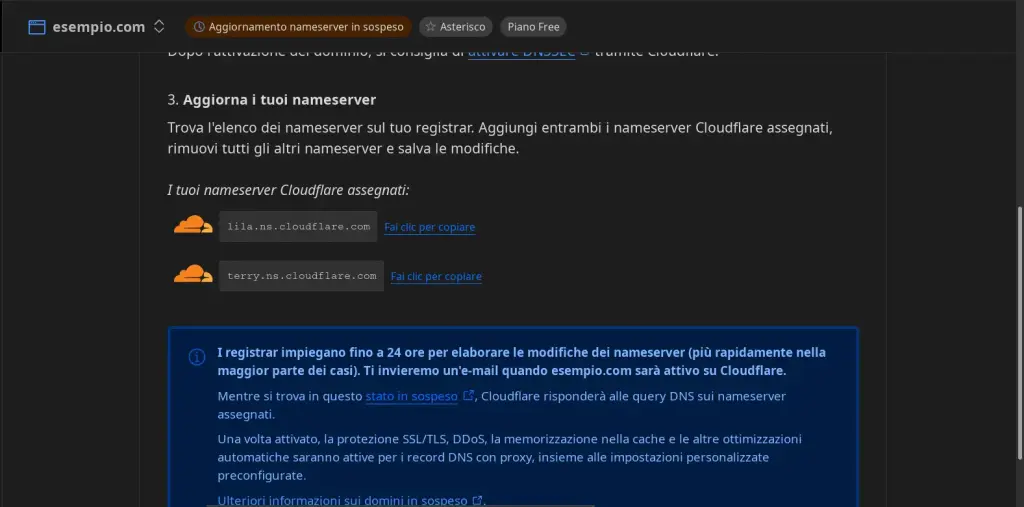
Step 3: Change the DNS
- Log in to the register control panel.
- Go enter the sections below to change the nameservers, like the screenshots in the main gallery:
- Manage Your Domain and Products
- Domain Association
- DNS Configuration
- Start the DNS Modification
- Replace the current nameservers with those previously suggested by CloudFlare in our case:
lila.ns.cloudflare.comterry.ns.cloudflare.com.
- At the moment we need to enter the IPs of the Name Servers, to get them:
On Linux and Mac we can use the command
digDNS lookup utilitydig lila.ns.cloudflare.comlila.ns.cloudflare.com. 86353 IN A 108.162.192.186 lila.ns.cloudflare.com. 86353 IN A 172.64.32.186 lila.ns.cloudflare.com. 86353 IN A 173.245.58.186dig terry.ns.cloudflare.com.terry.ns.cloudflare.com. 86353 IN A 108.162.193.237 terry.ns.cloudflare.com. 86353 AT 172.64.33.237 terry.ns.cloudflare.com. 86353 AT 173.245.59.237- Alternatively, we can use Google's administrative tools.
- An example of our current configuration:
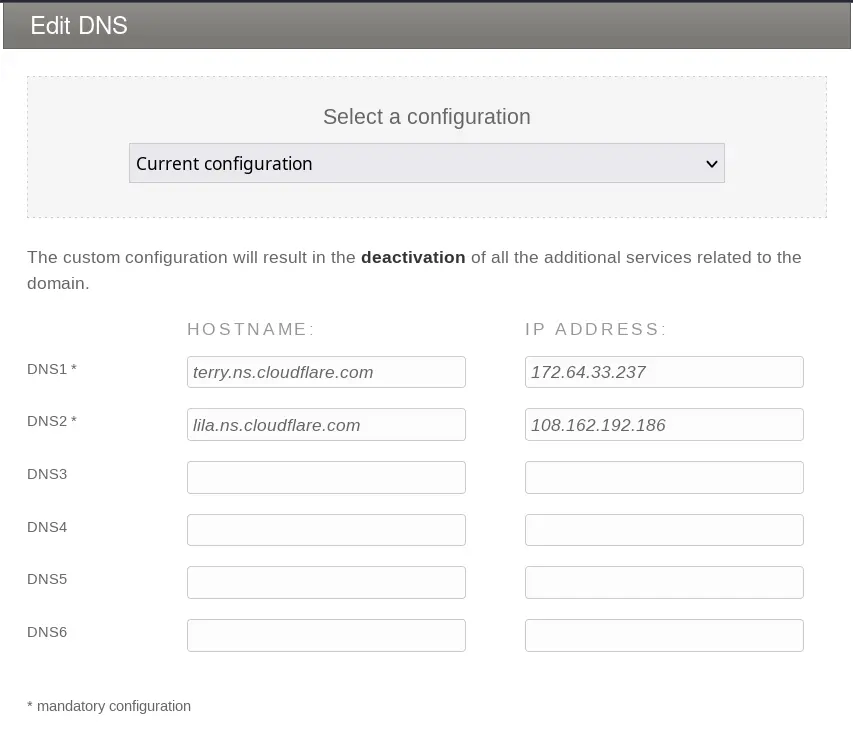
Now save the changes and wait for propagation, which can take up to 24 hours. CloudFlare will automatically check for changes and notify you with an email when the change has been made.
Step 4: Activate CloudFlare's Features.
- In the dashboard, enable Proxy Mode (click on the orange cloud icon button) to enable the use of CloudFlare on that record.
- Configure the security and performance settings to suit your needs.
Looking for support with CloudFlare?
Make an appointment with one of our CloudFlare Consultants. Now 30m of consulting for Free! We're ready to help you optimize content and security
FAQ: Common Questions
1. How long does it take to update DNS?
Propagation can take from a few minutes to up to 24 hours.
2. Can I revert back to register servers?
Yes, you can restore NS nameservers from the register control panel at any time.
3. What happens if I make a mistake in a DNS record?
An error in the configuration of DNS records can cause serious problems. This can affect the operation of a website, e-mail, and other applications that use the DNS system. DNS is essential for translating domain names, which are easy for users to remember, into IP addresses, which are needed for communication between servers.
When a mistake is made in configuring a DNS record, there are several issues that can arise. For example, if an A record, which associates a domain name with an IP address, is misconfigured, users may not be able to access the Web site. This can lead to a loss of traffic, sales, and reputation as visitors cannot find the site.
Similarly, if MX records, which handle email, are configured incorrectly, emails may not be delivered correctly. This means that important communications could be lost, causing inconvenience for both businesses and home users. In addition, an error in CNAME or TXT records can affect other applications, such as authentication and security services, making systems vulnerable to potential attacks.
To avoid these problems, it is critical to pay attention to detail when configuring DNS records. Before saving changes, it is advisable to review each record carefully, verifying that the values are correct and that there are no typos. Using DNS verification tools can also help identify any problems before they become critical.
In summary, an error in the configuration of DNS records can cause significant disruptions in online services, making careful and accurate management of these records essential. Always be sure to check and validate the information before making changes.
4. Is CloudFlare free?
Yes, it offers a free plan with many features; premium plans are also available for advanced needs.
5. Why is my site still not working after setup?
If you have just set up your website and are experiencing problems with its operation, there are several reasons that could explain this. One of the first things to check is the configuration of DNS records. DNS records are essential for proper domain name resolution and to ensure that users can access your website without problems. Make sure that DNS records have been set up correctly, including A, CNAME and MX records, depending on the needs of your site.
Also, verify that CloudFlare's nameservers are active and properly configured. CloudFlare acts as an intermediary between your site and visitors, providing security and performance optimization services. If the NSs are not active or not pointing properly to your domain, your site may not be reachable. You can check the status by logging into your domain registrar's control panel and verifying that the NSs provided by CloudFlare are set up.
Finally, remember that there may be other factors affecting your site. These include caching problems, server errors, or temporary problems with your hosting provider. It is always helpful to check your site configuration. If you need to, contact your hosting provider's or CloudFlare's technical support for help.
Conclusion
Configuring CloudFlare is a simple and powerful way to improve the performance and security of your site. Follow the steps in this guide to get started right away!