Complete Guide: How to Install a LAMP Stack on Ubuntu 26.04
What Is a LAMP Stack, and What Is It Used For? In the world of web application development, starting off on the right foot is essential. One of the most solid and widespread development environments is the LAMP stack, an acronym representing a group of open-source software components, orchestrated to run websites and online services. This guide will show you step-by-step how to install and configure a LAMP server on Ubuntu 26.04 Resolute Raccoon.
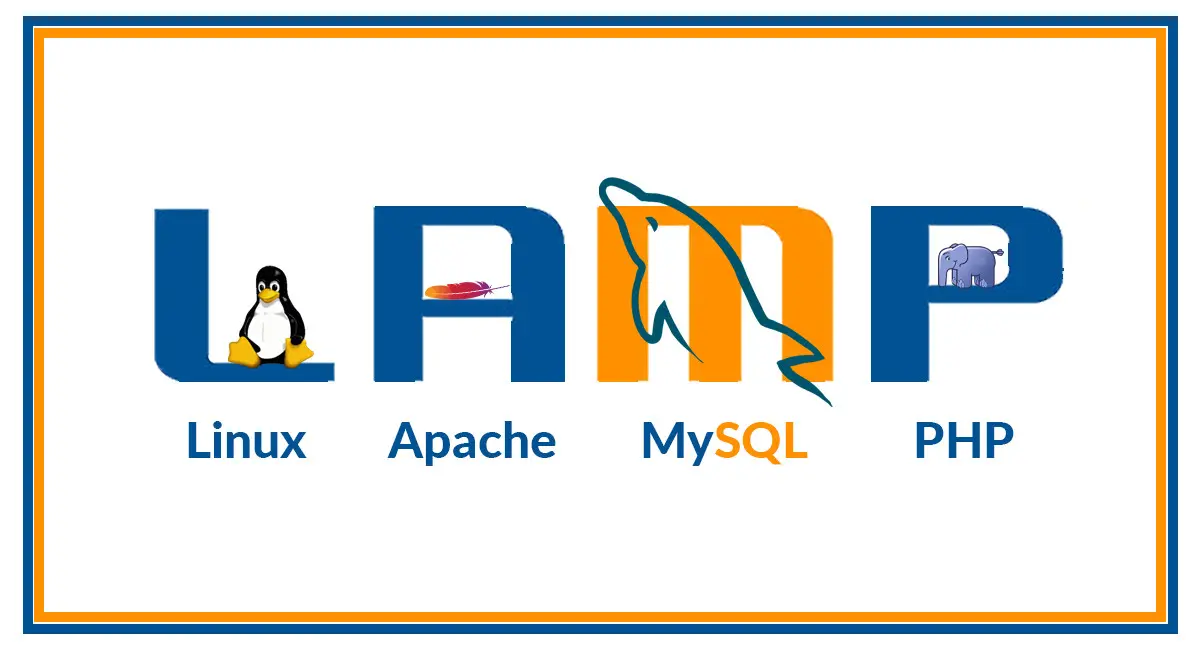
But what does LAMP exactly mean? Let's break down each letter:
- L for Linux: In this case, Ubuntu 26.04. Linux is a robust and flexible operating system, the foundation upon which we will build everything else.
- A for Apache: This is the web server, the software that receives requests from users' browsers and serves them content, whether they are simple static web pages or complex dynamic web pages.
- M for MySQL (or MariaDB): This is the database, one of the most popular relational data management systems, essential for storing information in a structured way.
- P for PHP: This is the server-side programming language that interfaces with the database and the web server to generate dynamic content and build the logic of your web applications.
Together, the LAMP stack (Linux, Apache, MySQL, PHP) constitutes a powerful and reliable platform, chosen by millions of developers for its stability and extensive support from the open-source community.
1. Install and Optimize the Apache Web Server
The first step is to install Apache2, the component that will handle HTTP requests. Instead of using the default configuration, we will immediately optimize it for maximum performance using mpm_event and the HTTP/2 protocol.
Let's install the Apache package.
sudo apt update && sudo apt install apache2We disable the less performant
mpm_preforkmodule and enablempm_event, which is ideal for handling a high number of simultaneous connections, along withhttp2for faster communication.sudo a2dismod mpm_prefork sudo a2enmod mpm_event http2We apply the changes by restarting the Apache service.
sudo service apache2 restart
2. Install and Configure PHP-FPM
To execute the code of our programming language, PHP, we will use PHP-FPM (FastCGI Process Manager). It is a high-performance implementation that handles PHP requests much more efficiently than the traditional mod_php, making it the ideal choice for modern web applications.
Install PHP-FPM and the necessary modules for Apache to communicate with it.
sudo apt install php-fpmsudo a2enmod actions proxy_fcgi alias headersTo connect Apache to PHP-FPM, edit your Virtual Host files (which we will cover shortly) by adding this block of code. It will direct all requests for
.phpfiles to the FPM service.<FilesMatch ".+\.php$"> SetHandler "proxy:unix:/run/php/php8.5-fpm.sock" </FilesMatch>Install the most common PHP modules, which are required by most content management systems (CMS) and frameworks for application development.
sudo apt install php-mysql php-curl php-gd php-intl php-mbstring php-xml php-zipRestart both PHP-FPM and Apache to apply all changes.
sudo service php8.5-fpm restart
sudo service apache2 restart
3. Secure the Site with HTTPS (Let's Encrypt)
No modern site can do without the HTTPS protocol. We will use Let's Encrypt and the certbot tool to obtain and automatically renew free, universally recognized SSL certificates.
Install Certbot and its Apache plugin.
sudo apt install certbot python3-certbot-apacheLaunch the guided configuration tool. Certbot will detect the domains configured in your Virtual Hosts and guide you through generating the certificate and automatically configuring Apache for HTTPS.
sudo certbot --apacheVerify that the automatic renewal works correctly with a dry run.
sudo certbot renew --dry-run
If everything went well, your site will now be accessible via https:// with a valid certificate.
4. Install the Database: MySQL or MariaDB
The last of the software components in our LAMP stack is the database. MariaDB is an open-source fork of MySQL, fully compatible and often preferred for its performance. The choice depends on your needs.
To install MariaDB Server (recommended choice):
sudo apt install mariadb-serverAlternatively, to install MySQL Server:
sudo apt install mysql-server
After installation, it is crucial to secure the database by running the included interactive script.
sudo mysql_secure_installationThis script will guide you through setting the root password, removing anonymous users, and deleting the test database, ensuring a basic level of security for your production environment.
Installing a LAMP stack is just the beginning. Keeping it secure, optimized, and performant requires time and specific skills. Rely on our expert Linux Consultants. We offer a free 30-minute analysis of your system.
Frequently Asked Questions (FAQ)
What is the difference between LAMP and LEMP?
The main difference lies in the web server. LAMP uses Apache, while LEMP uses Nginx (the "E" stands for "Engine-X"). Nginx is known for being extremely efficient at serving static content and handling a very high number of connections, while Apache is praised for its flexibility and powerful modules like
.htaccess.Why use PHP-FPM instead of the old mod_php?
PHP-FPM runs PHP as a separate service, allowing for much more granular and performant resource management. This approach prevents the web server from freezing under load and significantly improves the response speed of web applications, especially when combined with Apache's
mpm_eventmodule.Can I use other operating systems instead of Ubuntu?
Absolutely. Although this guide is specific to Ubuntu, the LAMP stack can be installed on almost all Linux-based operating systems, such as Debian, CentOS, or Fedora. The package management commands might vary (e.g.,
yumordnfinstead ofapt), but the configuration principles remain the same.