
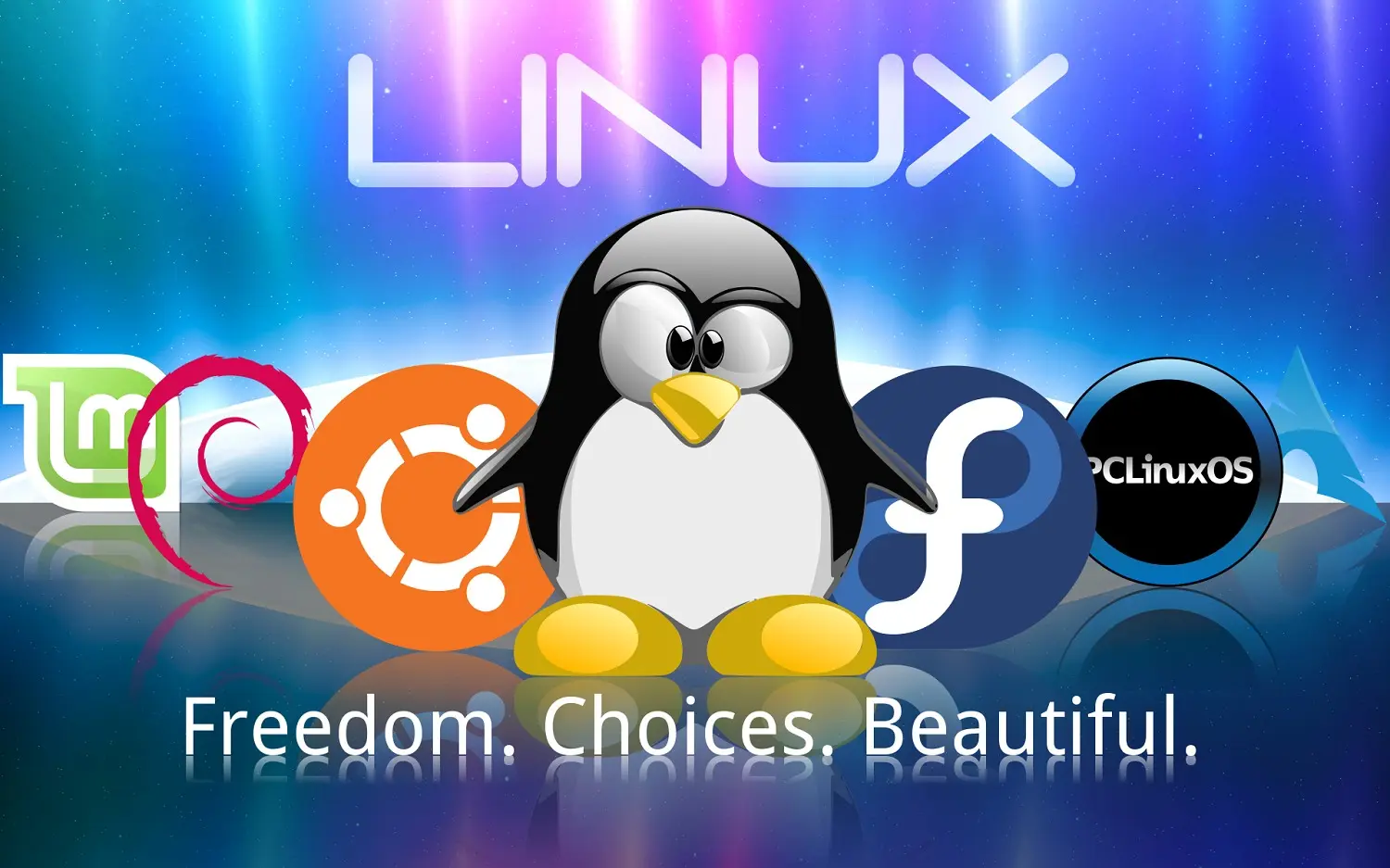
Linux distribution choice for old computers
If your old PC seems to have run out of batteries, don't despair! The time has come to explore a powerful and lightweight alternative: Linux. This practical guide will take you by the hand through the process of revitalizing your computer, allowing you to rediscover the potential of a machine you thought was doomed to a sad end.
Linux is not just an operating system; it is a community of innovators that offers a wide range of distributions to suit every need. Whether you are an experienced user or a novice eager to learn, you will find in this article tips and tricks for installing and customizing Linux easily and intuitively. Get ready to breathe new life into your PC and discover the wonders of open source technology. It's time for a fresh start!
Why choose Linux for an old PC?
When it comes to giving new life to an old PC, Linux emerges as one of the most effective and practical solutions. But why choose Linux over other operating systems? The answer lies in its lightness and flexibility. Linux is known to be much less demanding in terms of hardware resources than operating systems such as Windows or macOS. This means that even dated computers with modest technical specifications can run smoothly and responsively with a suitable Linux distribution.
Another reason Linux is ideal for older PCs is its open source nature. This not only makes Linux free, but also allows the global community of developers to continually contribute to its improvement. Updates are frequent and security vulnerabilities are quickly fixed, ensuring a secure and stable platform. In addition, the wide range of Linux distributions means that you can find a version of the operating system that perfectly fits your specific needs and hardware.
Finally, Linux offers broad compatibility with a variety of free software, ranging from web browsers to office suites to development tools. This makes Linux not only a lightweight option, but also versatile and powerful. If your old PC seems destined for retirement, Linux may be the key to giving it a new lease on life, allowing you to continue using it for many daily tasks without compromising performance.
Disadvantages of Linux over other operating systems
One of the main advantages of Linux over other operating systems is its security. Being open source, Linux's source code is accessible to anyone, allowing a large community of developers to quickly identify and fix any vulnerabilities. This collaborative approach makes Linux one of the most secure operating systems available, reducing the risk of malware and cyber attacks.
Another significant advantage is customization. Linux offers a level of flexibility that other operating systems simply cannot match. You can choose from a myriad of distributions, each of which offers different GUIs, tools, and preinstalled applications. This allows you to completely customize your working environment, tailoring it to your specific preferences and needs. In addition, many distributions are designed to be lightweight and fast, optimized to run on less powerful hardware.
Finally, Linux is known for its stable and reliable performance. Unlike other operating systems that can become slow and cumbersome over time, Linux maintains consistent responsiveness, even on dated hardware. This is especially important for older PCs, which may not be able to handle newer versions of Windows or macOS. With Linux, you can continue to use your computer without having to deal with performance drops or frequent crashes.
How to choose the right Linux distribution
Choosing the right Linux distribution can seem like a daunting task, given the wide range of options available. However, with a little research and consideration of your specific needs, you can find the perfect distribution for your old PC. The first step is to evaluate your computer hardware. If you have a PC with limited resources, such as less than 2 GB of RAM or an older processor, you should consider lightweight distributions such as Lubuntu, Xubuntu or Puppy Linux. These distributions are designed to be efficient and run well on dated hardware.
Another factor to consider is your level of experience with Linux. If you are a beginner, you may want to start with a user-friendly distribution such as Linux Mint or Ubuntu. These distributions offer intuitive graphical user interfaces and a large support community that can help you solve any problems. On the other hand, if you are an experienced user and want more control over your system, distributions such as Arch Linux or Fedora might be more suitable.
Finally, consider your primary use of your PC. If you need a general-purpose operating system, a distribution like Ubuntu or Linux Mint might be the best choice. If, on the other hand, you are looking for a distribution for specific purposes, such as software development or computer security, you may want to explore options such as Kali Linux or CentOS. Take the time to explore and test different distributions in order to find the one that best suits your needs and your hardware.
System Requirements to Install Linux
Before proceeding with Linux installation, it is important to verify that your PC meets the system requirements for the distribution you have chosen. Although Linux is known for its efficiency and light weight, different distributions have varying system requirements. For lightweight distributions such as Lubuntu, Xubuntu or Puppy Linux, the minimum requirements are generally very low. For example, Lubuntu requires at least a Pentium 4 or equivalent processor, 512 MB RAM and 8 GB disk space. However, for a smoother experience, it is advisable to have at least 1 GB of RAM and 20 GB of disk space.
For more comprehensive distributions such as Ubuntu or Linux Mint, system requirements are slightly higher. Ubuntu, for example, requires at least a 2 GHz dual-core processor, 4 GB of RAM and 25 GB of disk space. Again, having hardware above the minimum requirements will greatly enhance the user experience. If your PC does not meet these requirements, you may have to consider upgrading some hardware components or choose a lighter distribution.
In addition to hardware requirements, it is also important to consider software requirements. Make sure your PC can boot from a USB drive or DVD, since most Linux distributions are installed via these media. Also, it is helpful to have an active Internet connection during installation, as many distributions download updates and additional packages during the installation process. Knowing and preparing the system requirements will help ensure a smooth installation and a satisfactory user experience.
Step-by-step guide to Linux installation
Now that you have chosen the right Linux distribution and verified the system requirements, it's time to proceed with the installation. Follow this step-by-step guide to install Linux on your old PC.
- Download the ISO image of your chosen distribution: Visit the official website of the Linux distribution you have chosen and download the ISO image. This file contains all the data needed to install the operating system.
- Create an installation media: Use a program such as Rufus (for Windows) or Etcher (for Linux and macOS) to create a bootable USB drive or installation DVD. Follow the program's instructions to select the ISO image you just downloaded and the destination media.
- Start your PC from the installation media: Insert the USB drive or DVD into your old PC and turn it on. Access the BIOS or UEFI (usually by pressing F2, F12, Esc or Delete while booting) and change the boot order to boot from the installation media.
- Start Installation: Once you boot from the installation media, you will follow a series of guided steps. Select your language, keyboard layout, and other initial preferences. When prompted, choose the option to install Linux alongside another operating system (dual boot) or to replace the existing system completely.
- Disk Partitioning: If you decide to install Linux alongside another operating system, you will need to create a new partition for Linux. Most Linux installers offer an automatic option to resize existing partitions and create space for Linux.
- Installing the operating system: After configuring the partitions, the actual installation will begin. This process can take several minutes, during which time files will be copied and basic settings configured.
- User Configuration: Once the installation is complete, you will be asked to create a user account. Enter your name, a username, and a secure password.
- Remove the installation media and reboot: When finished, remove the USB drive or DVD and reboot your PC. You should see the Linux login screen. Log in with the credentials you created earlier and start exploring your new operating system.
Following these steps will give you a working Linux installation on your old PC, ready to be configured and customized to your needs.
Initial configuration after installation
After completing the Linux installation, initial configuration is a crucial step to ensure that your system is ready for daily use. The first thing to do is to upgrade the system. Open the terminal and type in the appropriate commands for your distribution. For example, on Ubuntu or Linux Mint, use sudo apt update followed by sudo apt upgrade. This will ensure that all software packages are up-to-date and that any security vulnerabilities are fixed.
Next, it is important to install the necessary drivers for your hardware. Many Linux distributions automatically detect your hardware and install the appropriate drivers, but in some cases you may have to manually install drivers for specific components such as your graphics card or network card. Check your distribution's system settings or driver manager to see if there are additional drivers available for your hardware.
Another important configuration concerns system settings and the user interface. Customize the desktop to your preferences by changing themes, icons, and wallpapers. Explore system settings to configure preferences for keyboard, mouse, display, and other peripherals. If you are using a distribution with a specific desktop environment such as GNOME, KDE or XFCE, you will find many customization options that will allow you to tailor the appearance and behavior of the system to your needs.
Essential Software to Install on Linux
Once you have completed the initial setup, it is time to install the essential software to make your Linux operating system functional and productive. The first set of applications to consider are web browsers. Firefox and Chromium are two of the most popular options and are available in most Linux distributions. If you prefer a different browser, such as Google Chrome, you can download it directly from the manufacturer's website.
For productivity, LibreOffice is a full-featured, open source office suite that includes a word processor, spreadsheet, presentation program, and more. It is compatible with Microsoft Office file formats, making it an excellent choice for those who need to create or edit documents, spreadsheets and presentations. If you need an advanced text editor, Gedit, Visual Studio Code and Sublime Text are excellent options available on Linux.
In terms of multimedia, VLC Media Player is an indispensable tool for video and audio playback. It supports a wide range of formats and offers many advanced features. For photo management, you can use programs such as GIMP, a powerful image editor, and Shotwell, a photo management application. If you are interested in music, Rhythmbox and Audacious are two excellent music players that offer a wide range of features.
Finally, don't forget to install backup and security tools. Timeshift is a backup application that allows you to create snapshots of your system, making it easier to restore in case of problems. For security, ClamAV is an open source antivirus that can be used to run system scans and detect threats. With these essential applications, you'll be ready to make the most of your Linux operating system.
Resolving Common Problems After Installation
Although Linux is known for its stability and reliability, you may still encounter some problems after installation. One of the most common problems involves hardware drivers. If you notice that some components of your PC, such as your graphics card, network card, or audio, are not working properly, check for missing or outdated drivers. Most Linux distributions include a driver manager that can help you install and update the drivers you need.
Another common problem concerns system performance. If your PC seems slow or not responding as expected, there are several solutions you can try. Start by checking system resource usage with tools such as top or htop. These tools will show you which processes are consuming the most CPU and memory. You can also consider disabling unnecessary services or applications that start automatically. Also, make sure you have enough free disk space, as a full disk can slow down your system considerably.
Software compatibility problems can also arise, especially if you are trying to use applications designed for Windows. In these cases, Wine is a great tool that allows you to run many Windows applications on Linux. However, not all applications work perfectly with Wine, so you may have to look for native Linux alternatives. The Linux community is very active and helpful, so don't hesitate to look for help on the forums or in your distribution's support groups.
Linux Maintenance and Upgrades
Keeping your Linux system up-to-date is critical to ensure optimal performance and security. Most Linux distributions make this process fairly easy by offering update management tools that notify you when new versions of software packages are available. On Debian-based distributions such as Ubuntu and Linux Mint, you can use the command sudo apt update followed by sudo apt upgrade to update the system. Red Hat-based distributions, such as Fedora, use dnf update for the same purpose.
In addition to regular system updates, it is important to perform periodic maintenance. This includes cleaning up temporary files and old packages that are no longer needed. Tools such as bleachbitcan help you clean your system safely. Also, be sure to monitor disk usage and free up space when needed. You can use commands such as df and du to monitor disk occupancy and identify directories that consume the most space.
Security is another crucial aspect of system maintenance. In addition to keeping your system up-to-date, consider using tools such as ufw (Uncomplicated Firewall) to configure a firewall and protect your system from external threats. It is also a good practice to make regular backups of your important data. Tools such as rsync and timeshift allow you to create incremental backups and restore your system in case of problems.
Conclusion: the future of your PC with Linux
Rivitalizing your old PC with Linux is a wise decision that can extend the life of your hardware and enhance your computing experience. With a lightweight, secure, and customizable operating system, your old computer can become a useful, high-performance device again. The extensive support community and availability of open source software make Linux an excellent choice for both beginners and experienced users.
The versatility of Linux allows you to tailor the system to your specific needs, whether you need a work, development, or entertainment environment. With lightweight distributions like Lubuntu or Xubuntu, even PCs with limited hardware can run smoothly. And with more comprehensive distributions like Ubuntu or Linux Mint, you can enjoy a rich and smooth user experience.
Your PC's future with Linux is bright. With regular updates, proper maintenance, and an active community of developers and users, Linux offers you a modern and reliable platform. Not only will you be able to continue using your old PC, but you will also discover a world of possibilities with open source software. So pick up your old computer, install Linux, and get ready to explore new opportunities with an operating system that continues to evolve and innovate.