
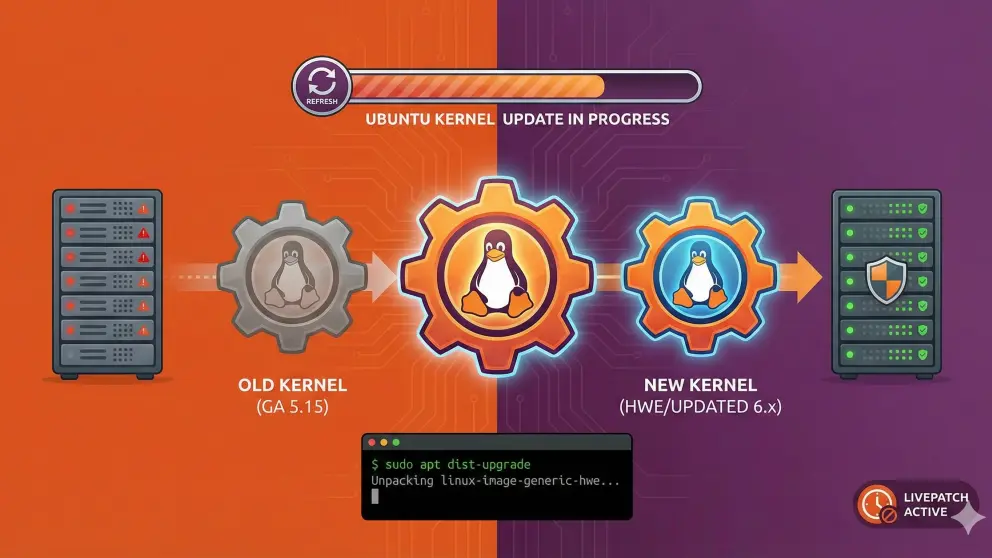
Updating the Ubuntu Linux Kernel: A Complete Guide for Enterprises
The kernel is the beating heart of every Linux system, a critical bridge between hardware and software. For CTOs, system administrators, and digital entrepreneurs, understanding the dynamics of an Ubuntu Linux kernel update is not just a matter of routine maintenance, but a fundamental strategy for ensuring security against vulnerabilities (CVEs), optimizing I/O performance, and supporting next-generation hardware. In this technical guide, we explore best practices for managing kernel upgrades on Ubuntu, minimizing the risk of downtime and maximizing system stability.
Key Points of the Article
- Strategic Role: Why kernel updates directly impact corporate security and server efficiency.
- LTS vs. HWE: The crucial difference between General Availability (GA) and Hardware Enablement (HWE) kernels in production environments.
- Safe Procedures: Proven methods for upgrading the Ubuntu Linux kernel via the terminal and GUI.
- Zero Downtime: An introduction to live patching to install security patches without rebooting.
- Disaster Recovery: How to roll back to a previous version in case of incompatibility.
Why Kernel Updates Are Critical for Business
Often overlooked in basic maintenance routines, the kernel update is one of the most delicate and impactful operations for an IT infrastructure. It’s not simply a matter of having “the latest version,” but of protecting corporate assets.
The main reasons for planning a Linux kernel upgrade include:
- Vulnerability Mitigation (Security): The kernel has full privileges over the hardware. Bugs like Dirty COW or driver vulnerabilities can allow an attacker to gain root privileges. Updates contain vital patches for these CVEs.
- Advanced Hardware Support: New servers often require updated drivers for the latest-generation CPUs (e.g., Intel Xeon or AMD EPYC), high-performance network cards, or NVMe controllers. An outdated kernel may fail to recognize recent hardware, creating bottlenecks.
- Performance Optimization: Each new release of the Linux kernel (mainline) introduces improvements to the CPU scheduler, memory management, and file systems (such as Ext4, Btrfs, or ZFS), resulting in a more responsive system.
Understanding the Ubuntu Ecosystem: GA vs. HWE
Before entering any command to update the Ubuntu kernel, it’s essential to understand Canonical’s release policy, especially for LTS (Long-Term Support) versions widely used in production.
GA (General Availability) Kernel
This is the standard kernel released with the LTS version (e.g., Linux 5.15 on Ubuntu 22.04 LTS). It is the recommended choice for maximum stability. It receives security updates for 5 years, but the “major version” does not change. Ideal for servers that do not require support for new hardware after installation.
HWE (Hardware Enablement) Kernel
The HWE stack offers newer kernels ported from intermediate Ubuntu releases (e.g., porting the Ubuntu 23.10 kernel to Ubuntu 22.04 LTS). This is essential if you need updated graphics drivers or support for recent chipsets. However, the support cycle is shorter and requires more frequent updates (“rolling” within the LTS).
Note for CTOs: If your infrastructure is stable and performing well, staying on the GA kernel is often the wisest choice to minimize the risk of regressions.
Preliminary Analysis: Checking the Current Version
Before proceeding with an Ubuntu Linux kernel upgrade, you need to identify which version is currently running. Open the terminal and run:
uname -srThe output will look something like Linux 5.15.0-91-generic.
- 5.15.0: The mainline kernel version.
- -91: The patch level applied by Canonical (includes security fixes specific to Ubuntu).
- -generic: The kernel “flavor” (suitable for most desktops and servers). There are variants such as
-lowlatencyor-awsfor specific cloud environments.
Technical Guide: How to Perform an Ubuntu Linux Kernel Update
There are several methods for updating the kernel, depending on the level of control and stability required.
Method 1: Standard Update (Recommended for Production)
The safest method for an Ubuntu kernel upgrade is to use the official repositories. This ensures that the kernel has been tested and signed by the Ubuntu security team.
sudo apt update
sudo apt upgrade
sudo apt dist-upgrade
The command dist-upgrade is crucial here, as it “intelligently” handles dependencies that change with new kernel versions by installing the new packages linux-image and linux-headers but be careful with the proposed changes; if the repositories apt are misconfigured, you may encounter problems.
After installation, you’ll need to reboot the system:
sudo rebootMethod 2: Switching to the HWE stack
If you need a newer kernel on an existing LTS installation (e.g., for Wi-Fi 7 support or new GPUs), you can install the HWE stack:
For Desktops:
sudo apt install --install-recommends linux-generic-hwe-22.04For Servers (without graphics):
sudo apt install --install-recommends linux-generic-hwe-22.04Replace "22.04" with your specific LTS version.
Want to sleep soundly with your Ubuntu servers?
Managing a mail server or critical Ubuntu infrastructure requires time and specialized expertise. A configuration error during a kernel update can result in hours of downtime.
Canonical Livepatch: Update Without Rebooting
For mission-critical environments where downtime is not an option, Canonical offers the Livepatch service. This technology allows you to apply critical security patches to the running kernel without having to reboot the machine.
Livepatch is free for personal use (up to 5 machines) and included in Ubuntu Pro subscriptions for businesses. It’s an excellent solution for maintaining security compliance while reducing maintenance windows.
To enable it:
sudo snap install canonical-livepatch
sudo canonical-livepatch enable [IL_TUO_TOKEN]
Troubleshooting: Risk Management and Rollback
Even when following best practices, a Linux kernel update can cause incompatibilities (e.g., a proprietary NVIDIA or VMware driver module that fails to compile). Here’s how to handle these issues.
Boot a Previous Kernel
By default, Ubuntu keeps the latest kernel versions installed. If the new kernel causes a kernel panic or malfunctions:
- Restart the system.
- Hold down the
Shift(orEscon some UEFI systems) immediately after the BIOS screen to access the GRUB menu. - Select "Advanced options for Ubuntu."
- Choose the previous kernel version (the one not labeled “recovery mode”) to boot the system.
Cleaning Up Old Kernels
After verifying that the new kernel is stable, it is good practice to remove obsolete versions to free up space on the partition /boot. The command to do this automatically is:
sudo apt autoremoveFrequently Asked Questions (FAQ)
Is it necessary to reboot after a kernel update?
Yes, unless you are using Canonical Livepatch. The new kernel is loaded into memory only during the boot process. Until you reboot, the system will continue to use the previous version.
What is the difference between
apt upgradeandapt dist-upgrade?apt upgradeupdates existing packages but avoids installing new ones or removing old ones unless strictly necessary.dist-upgrade(orfull-upgrade) is more aggressive and necessary for kernel updates, since new kernel versions are technically new packages installed alongside the old ones.What is a Mainline kernel, and should I use it?
Mainline kernels are the “pure” versions released by Linus Torvalds and the global maintainers on kernel.org. They do not contain Ubuntu-specific patches and are not officially supported by Canonical. They are not recommended for production environments unless needed for specific debugging purposes.
How can I prevent the kernel from being updated?
If a specific version is critical for your application, you can use “version pinning” via
apt-mark hold linux-image-generic, but this will expose the system to future security risks.